
Creative Design
Canva vs Adobe for Marketing Design: Which Should You Use?
By Kavin P · · 7 min read
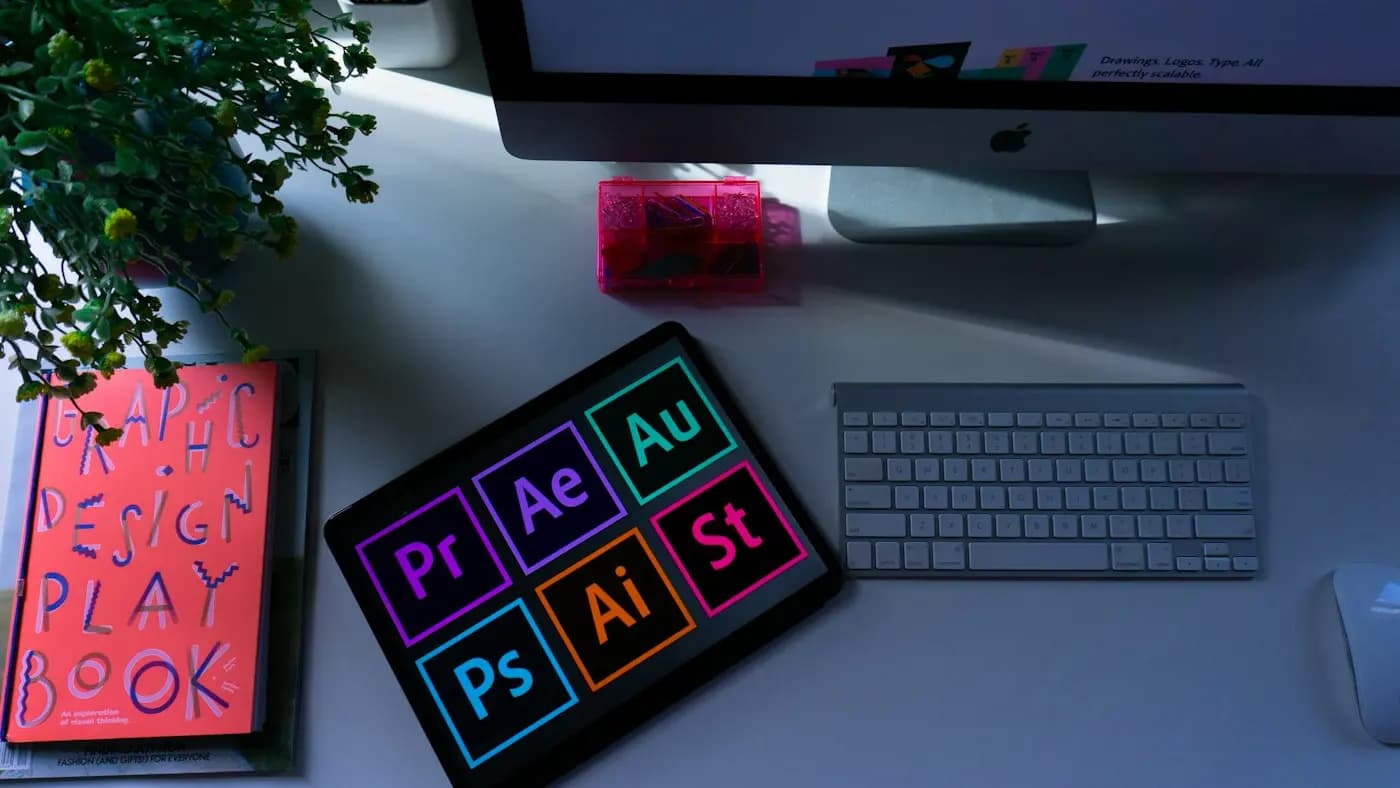
Choosing between Canva and Adobe is one of the most common questions small teams ask when they start producing their own creative. Both can produce excellent work, but they are built for different people and different jobs. This guide helps you decide based on what you actually need to make, not on hype.
The short answer
Canva is a browser-based, template-driven tool built for speed and collaboration. Adobe's creative applications, such as Photoshop, Illustrator and InDesign, are professional programs built for precision and custom work.
Neither is universally better. The right choice depends on who is designing, how often, how custom the output needs to be, and who has to approve and reuse the files. Many businesses end up using both: one for everyday content and one for specialist projects.
What Canva does best
Canva shines when you need decent-looking output quickly and the people designing are not trained designers.
- Templates: you start from a layout rather than a blank page, which removes the hardest part for beginners.
- Low learning curve: most people can produce a social post within their first session.
- Collaboration: teammates can comment, edit and reuse the same files without exporting and emailing.
- Brand kits: you can store colours, fonts and logos so non-designers stay on brand.
- Multi-format work: one design can be resized into several formats with little effort.
Its limits show up when you need fine typographic control, complex image editing, unusual layouts or print-ready files with precise specifications. Templates can also lead to a generic look if many businesses use the same ones without customising them.
What Adobe does best
Adobe's applications reward skill with control. Each program has a specialist job.
Photoshop for images
Photoshop is the standard for detailed photo editing, retouching, compositing and complex image work. If your campaign depends on custom imagery, it offers depth that browser tools rarely match.
Illustrator for vector graphics
Illustrator is used for logos, icons and illustrations that must scale from a tiny favicon to a large banner without losing quality. For brand marks, vector work is usually the professional route. You can see how this fits into a logo workflow in the logo design process step by step.
InDesign for layouts
InDesign handles multi-page documents such as brochures, catalogues and reports, with strong control over text flow, grids and print output.
The trade-off is a steeper learning curve, a heavier workflow and a subscription cost that may not make sense if only one person uses it occasionally.
Comparing them on the factors that matter
Instead of asking which is better, compare them against your own situation.
- Skill level: if nobody on your team has design training, Canva will produce more consistent results faster. If you have a trained designer, Adobe lets them work without limits.
- Speed versus originality: templates are fast, but original concepts usually come from building layouts from scratch.
- Print requirements: commercial printing often calls for exact colour modes, bleeds and fonts embedded in the file. Adobe tools give more control, though careful setup in simpler tools can also work for basic jobs. Always confirm requirements with your printer.
- Team workflow: if several people need to edit the same file, a shared online tool is easier. If a single designer owns the files, a desktop workflow is fine.
- Budget: compare the real cost of a subscription against the time you would otherwise spend. Check current pricing directly, as plans change.
- File ownership and handover: know which file formats you can export and whether a freelancer or agency can open and edit them later.
Matching the tool to the task
A practical way to decide is by task type.
- Everyday social posts, stories and simple ads: Canva is usually enough. See social media post design tips for layout advice that works in any tool.
- Presentations and pitch decks: either works. Canva is quick for internal decks, while custom decks for important pitches may benefit from specialist design. The presentation design tips post covers structure and slide layout.
- Logos and brand identity: vector tools such as Illustrator are the safer choice, because the master files need to be precise and scalable.
- Infographics: simple ones can be done in Canva. Data-heavy or highly custom ones often benefit from more control. See infographic design tips.
- Photo retouching and composites: Photoshop.
- Brochures, catalogues and reports: InDesign, or Canva if the document is short and simple.
Imagine a small online tea shop. The owner uses Canva for weekly Instagram posts and email banners because speed matters. When it is time to create a logo and packaging labels, the shop hires a designer who works in vector software and delivers master files. Each tool is used where it fits.
Getting the best from whichever tool you pick
The tool matters less than the habits around it. A few practices improve results in both.
- Set up your brand colours and fonts first, so every design starts consistent.
- Customise templates rather than using them untouched. Change the colours, type, imagery and layout until they feel like yours.
- Learn the basics from graphic design principles for marketers, because hierarchy and spacing improve any tool's output.
- Name and organise files clearly, with a folder for finals and a folder for editable sources.
- Export in the right format: PNG or JPG for screens, PDF for documents, and vector formats for logos.
When to bring in a professional
If you find yourself fighting a template for hours, or you need a logo, packaging or a full identity, a professional designer will usually save time and give you cleaner source files. Browse the design portfolio to see the kind of work that goes into custom projects.
Questions to ask before you decide
If the comparison still feels unclear, answer these questions honestly. They usually point to an obvious winner.
- Who will make most of the designs? A trained designer, an owner with no design background, or a rotating team of marketers?
- How often will you design? Daily content favours speed, while occasional large projects favour power.
- How custom does the work need to be? If competitors use similar layouts and you want to stand out, you will need more flexibility than templates give.
- Where will the output appear? Screens are forgiving. Print, packaging and signage are not.
- Who needs to edit later? If the files must be handed to a printer, agency or new employee, check that they can open and change them.
- What are you willing to learn? Time spent learning a complex program is an investment only if you will use it often.
A sensible way to trial your options
Rather than debating, run a small test. Choose one real piece of content, such as a promotional post and a one-page flyer, and produce it in each tool you are considering. Track how long it takes, how close the result is to your brand, and how easy it is to revise after feedback.
Look at the outcome with fresh eyes the next day. Ask whether the design looks like your business or like a template anyone could have used. Ask whether a colleague could edit it without your help.
Free trials and free plans exist for many tools, so you can compare without committing. Keep the test fair by using the same copy and images in both versions.
Avoid common traps
- Do not pay for a full suite when you only need one application.
- Do not assume a tool will make you a better designer; the thinking behind the layout still matters.
- Do not let files scatter across personal accounts. Agree on one shared place for finals and sources.
- Do not skip a brand guide. Without agreed colours and fonts, any tool produces inconsistent output.
The best tool is the one your team will actually use well, consistently and on brand.
Key takeaways
Pick Canva when you need speed, easy collaboration and brand consistency across non-designers. Pick Adobe when you need precision, custom artwork, advanced image editing or professional print files. Many small businesses do best with a hybrid: a simple tool for daily content and a specialist for the foundations of the brand.
Start by listing the five types of content you make most often, then match each to a tool using the factors above. If you want help setting up a brand kit or templates that your team can maintain, reach out through the contact page.
Frequently asked questions
Is Canva good enough for professional marketing?
For many everyday formats such as social posts, simple ads and short documents, yes. It works best when you customise templates and apply a brand kit. For logos, complex imagery or demanding print jobs, specialist tools are safer.
Is Adobe too hard for beginners?
It has a steeper learning curve than template tools, but it is learnable with focused practice on one program at a time. Beginners often start with the single application that matches their most common task rather than the whole suite.
Can I use both Canva and Adobe together?
Yes, and many teams do. A common pattern is to have a designer create logos and master assets in Adobe tools, then use those assets in a shared online tool so non-designers can produce routine content on brand.
Which is cheaper for a small business?
It depends on how many people design and how often. Compare current plans against your real usage, including the time saved or lost. Prices and plans change, so check each provider directly before deciding.
Related articles
Creative Design8 min read
Banner Ad Design Tips That Earn Attention and Clicks
Practical banner ad design tips for small businesses: structure, copy, imagery, sizes and testing, so your display ads get noticed without looking cluttered.
Creative Design8 min read
Business Card Design Tips for a Card People Actually Keep
Business card design tips for small business owners: what to include, how to lay it out, paper and finish choices, and how to prepare files for print.
Creative Design7 min read
Giving Design Feedback That Designers Can Act On
Giving design feedback is a skill. Learn how to describe problems, tie comments to goals, avoid vague notes and run a review round that ends with a better result.